
Fixing a cramped layout: a worked example
Same room, same square footage, five Flow Check warnings — and a layout that goes from red to all-clear by moving, swapping, and scaling what's already there. Here's the order of operations.
When Flow Check lights up with several warnings at once, it's tempting to either ignore it or rip the whole layout apart. Neither is the move. Most cramped rooms get to green by fixing things in the right order: handle the physical problems first (anything blocked, anything overlapping, anything with no room to extend), and the comfort problems usually shrink on their own.
Here we take a small living room with five Smart Flow Check warnings — a blocked door, a recliner with no room to recline, a tight walkway, a bookcase blocking the window, and cramped seating — and walk it all the way to green. Same walls. Same floor area. Same furniture (mostly). The fixes are positioning, swapping, and scale.
What you'll need
- •A room with a layout you're not sure about — yours, or this worked example as a template
Step by step
- 1
Start with the warnings, not the room
Open the layout you're worried about and let the Flow Check panel tell you what's wrong — each line is a problem with a one-line fix. In our example: five issues. Read them all before you touch anything. The point isn't to memorize the room; it's to know what you're solving for.
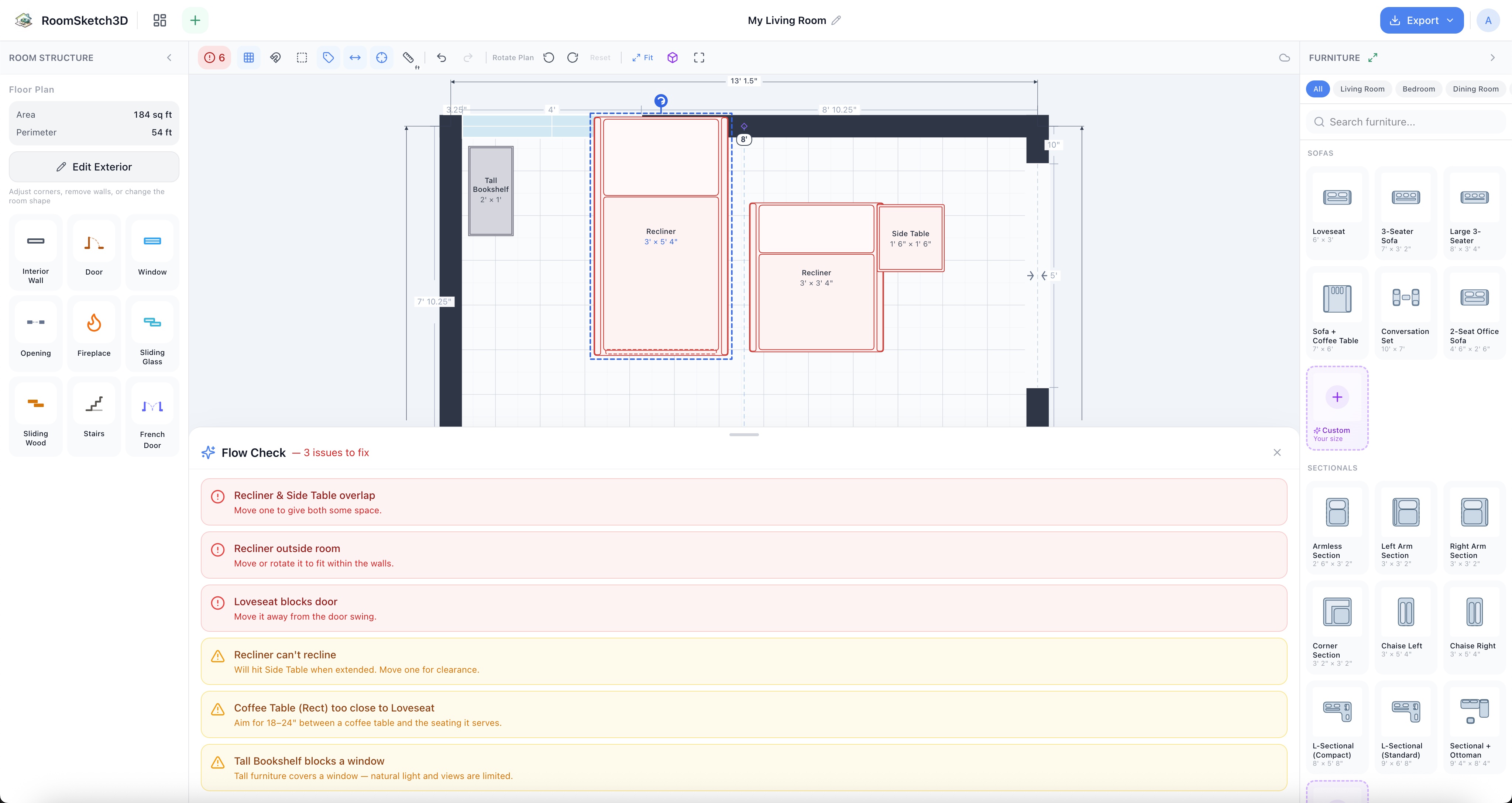
Five issues to fix — read them all before moving anything. - 2
Fix the physical problems first
Blocked door swings, overlapping pieces, recliners or sofa beds with no room to extend — those are the warnings that get worse if you don't deal with them, and fixing them usually frees up space for the rest. In our example: slide the sofa clear of the door's swing arc; pull the recliner forward six inches so it can fully recline. Two warnings gone, and suddenly the room has a few more options.
- 3
Now fix the comfort problems
Walkway too tight? Swap a piece for a smaller one (a 42-inch coffee table instead of 48), or move it forward an inch or two. Bookcase blocking a window? Tall pieces should never block a window — swap it with something low (a bench, a console). Seating crammed too close? Nudge each side a hand's width. None of these requires a bigger room — they're scale and placement.
- 4
Land on all-clear — and check it in 3D
When the badge turns green and the panel says "All good," your layout clears the standard clearances: doors open, recliners recline, walkways accommodate a person, seating isn't cramped, windows breathe. Switch to 3D and walk in: the room shouldn't just be technically clear — it should feel clear too. Same walls, same square footage; different room.
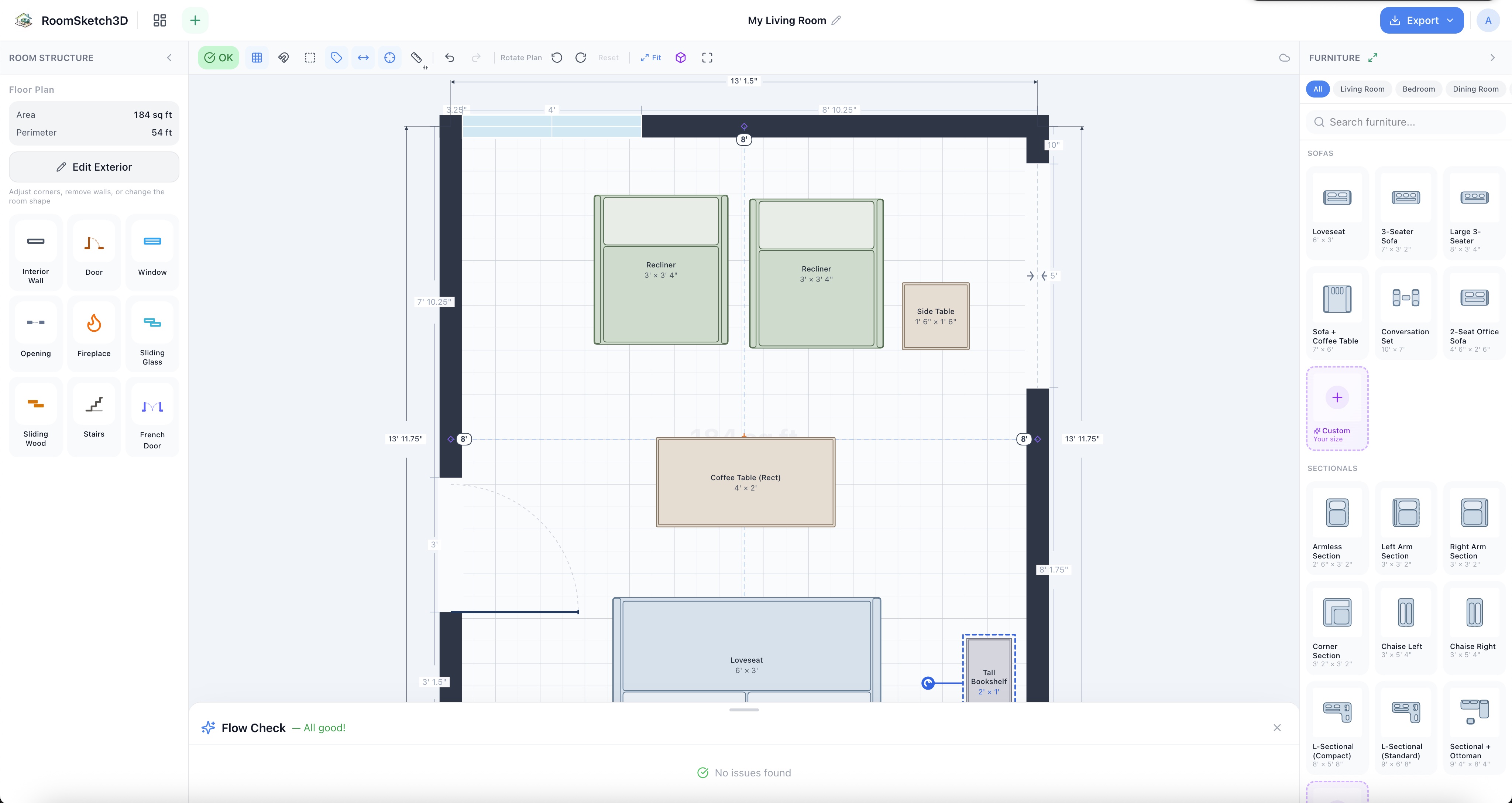
Same room, same furniture (mostly). Reads completely differently. - 5
When the warnings won't all clear
Sometimes you'll move, swap, and rotate everything and Flow Check still shows two issues you can't shake. That's not a layout problem — it's a furniture-too-big or room-too-small problem. Reach for custom furniture at smaller dimensions (a 72-inch sofa instead of 96, an apartment-size dining table) or accept that one piece has to come out. See Will it fit? for the workflow.
Tips
Physical first, comfort second
Door swings and extension clearances (recliners, sofa beds) almost always benefit from being fixed before walkway and spacing issues — solving them frees up the floor area the comfort fixes need.
Swap before you rip
A 96-inch sofa won't fit, but a 78 will. A 48-inch coffee table is too big, but a 42 isn't. Before you abandon a layout, try the next size down — that's what custom furniture is for, and what catalog pieces in different sizes are for.
Tall pieces away from windows, always
Bookcases, wardrobes, tall shelving — these should never sit in front of a window, regardless of what Flow Check says. They block daylight, they block the view, and they make the room feel smaller than it is.
Use 3D as the second opinion
Even an all-clear plan can read awkwardly in 3D — too tight a corner, an unflattering sightline, a wall that feels naked. When you've cleared Flow Check, walk the room in 3D before you call it done.
Common mistakes
Trying to fix everything at once
Five warnings on the panel is overwhelming, so don't treat it as one problem. It's five problems — and each one has a one-line fix. Take them in order.
Solving the comfort issues first
Nudge the sofa to widen the walkway and then discover the door still can't open. Always handle the physical/blocking warnings first; they often dictate what positions are even available for the comfort fix.
Refusing to swap a piece
Sometimes the room is simply telling you one specific piece doesn't belong — too big, too tall, too placed. Pride is not a layout strategy. Swap it.
Frequently asked questions
What order should I fix Flow Check warnings in?
Physical problems first — anything blocking a door swing, anything overlapping, anything a recliner or sofa bed can't extend out of. Those often free up space that solves the comfort warnings (walkways, spacing, window clearance) for free. Then handle the comfort warnings one at a time.
What if Flow Check won't all clear, no matter what I move?
That's a sign the room isn't a layout problem — it's a furniture-too-big or room-too-small problem. Try smaller dimensions (custom furniture with reduced width, a different catalog size) or accept that one piece needs to come out. See Will it fit? for the workflow.
Can I just swap pieces instead of moving them?
Yes — and you usually should. A 78-inch sofa instead of a 96, a 42-inch coffee table instead of a 48, a low bench in place of a tall bookcase. Swapping the size or the type of a piece is often the cheapest fix.
Is an all-clear Flow Check enough?
It means your layout meets the standard clearances — but it doesn't guarantee the room feels right. Always walk it in 3D before you commit: clear-but-awkward layouts exist, and 3D is where you'll spot them.
Do I have to fix every warning?
No — Smart Flow Check informs, it doesn't block. If a warning is intentional (a rug under the sofa, say), you can leave it. But for door swings, recliner clearance, and walkways, leaving them is almost always a layout you'll regret.
Start designing your room
Draw it, furnish it, walk through it in 3D — on web, iOS, and Android.
Open Room Sketch 3DOne-time purchase · No subscription · Web, iOS & Android